
Overview
Once you have added your episode and captions or translations as desired, a video or audio created in Jetstream Studio can be published on YouTube, on Facebook, on an Adventist Web Engine website, or elsewhere using an Embed.
How to
Publish a Video or Audio created in Jetstream
You can go to the detailed media page of an episode you are ready to publish and scroll down to the section: Publish. Your publishing options will appear here. The instructions for each option follow below.
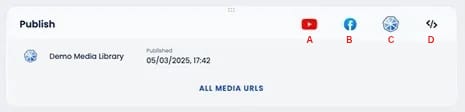
A. YouTube and B. Facebook: To publish an Episode to YouTube or Facebook, you have two possibilities. You can either publish through the brand or through the organization.
- Brand: This is only for this specific Brand. Brand level connections can be created by anyone who has Jetstream editor rights.
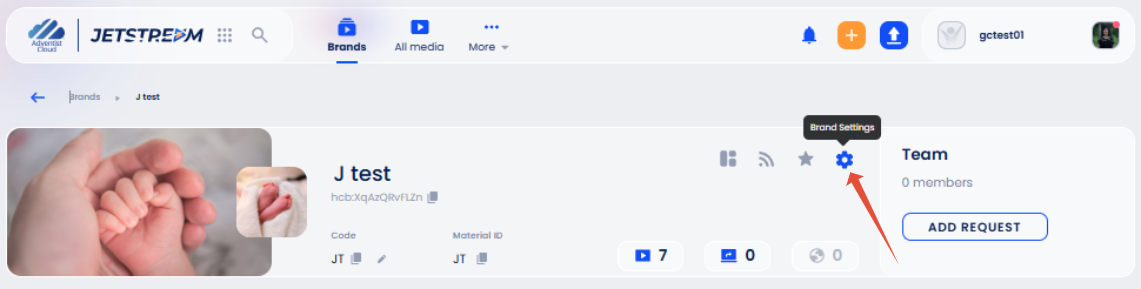
- On the Brand Page, click on the Brand Settings icon.
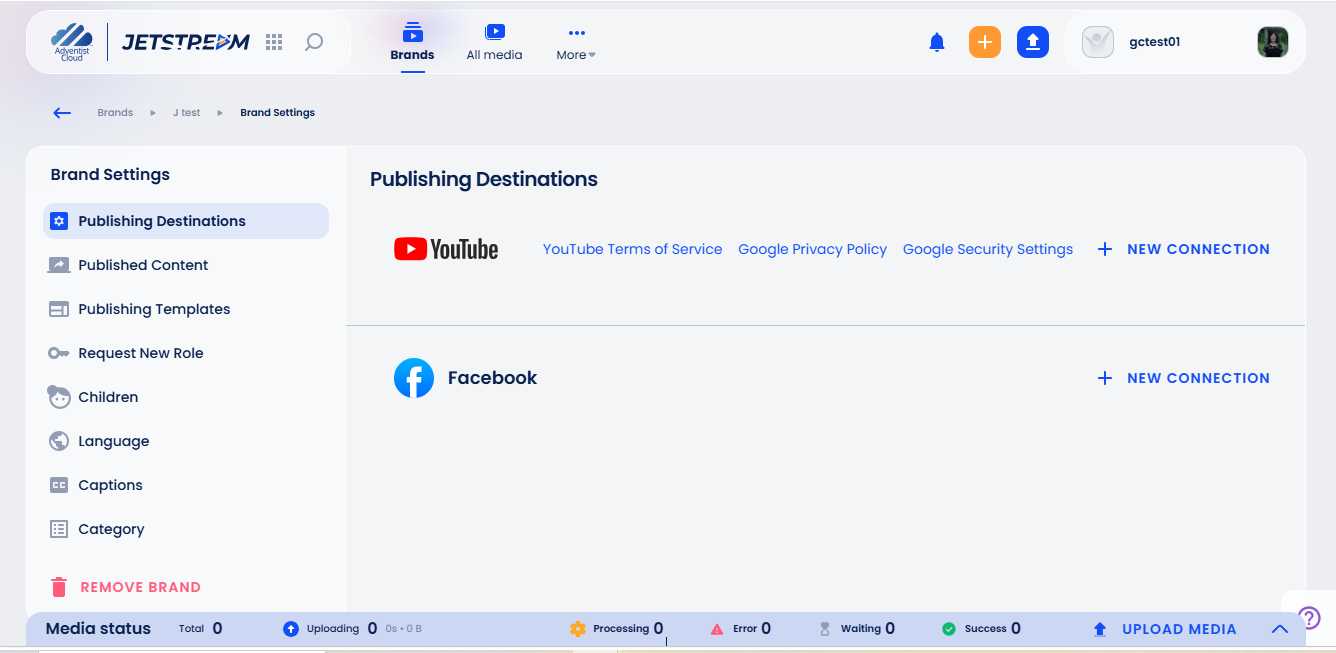
- The Publishing Destinations will appear. Select the + New Connection link to the right of YouTube or Facebook.
- Connect your account using the modal box that appears.
- Organization: If you want your YouTube or Facebook connection to Jetstream to be available for all brands, then you have to do it through the organization. This is done through hope.cloud by the organization admin. Once this is done, the option will appear automatically for each episode. If you have connected another account as well, both will appear when you click on the Publish icon under the video on the Episode page. Otherwise, only one option will appear.
C. Adventist Web Engine: You can request a one-time activation to connect your Jetstream account to an Adventist Web Engine website here. For more information about Adventist Web Engine websites, click here.
You are now ready to select from YouTube, Facebook, or WebEngine accounts that you have connected to Jetstream.
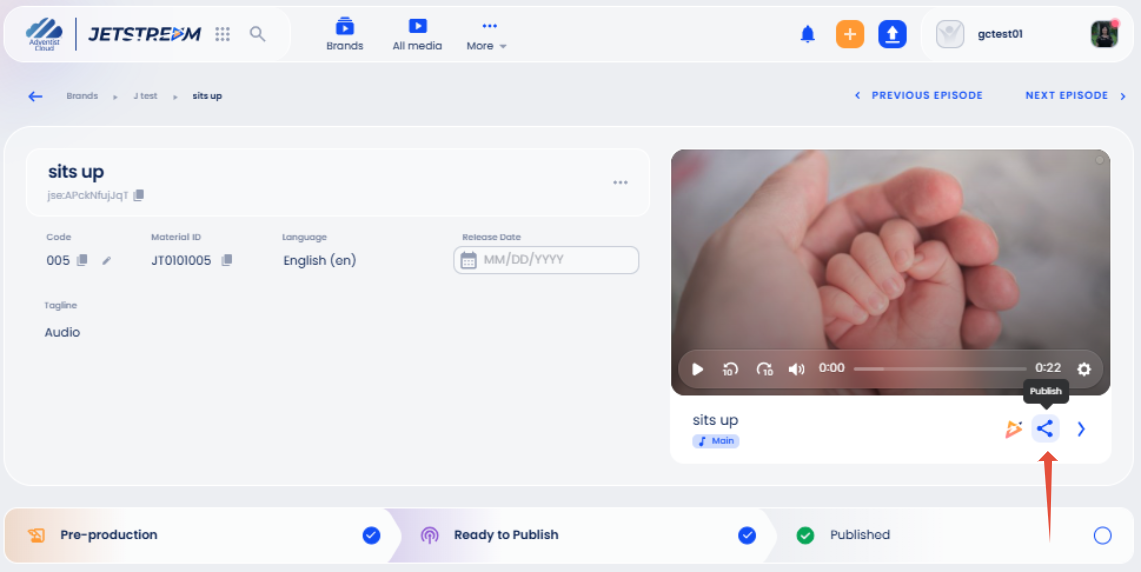
- Return to the Episode page of an episode you are ready to publish and click on the Publish icon. Select the icon you want to use to publish. We will use Facebook for this example.
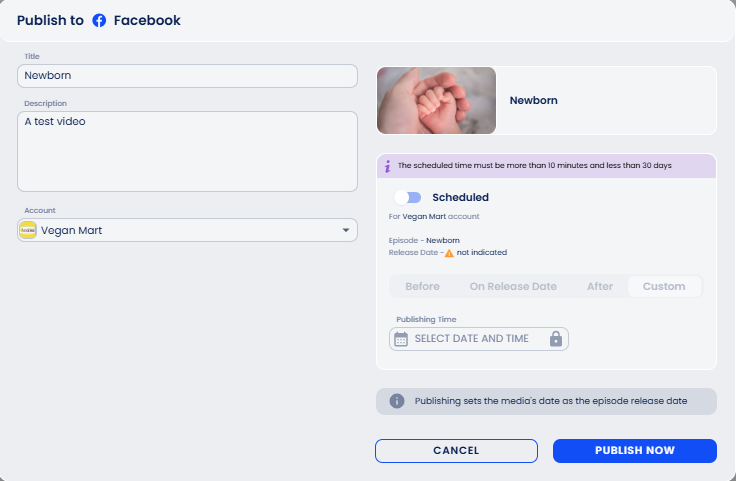
- A modal box will appear. Fill in all required fields. Then click the Publish Now button.
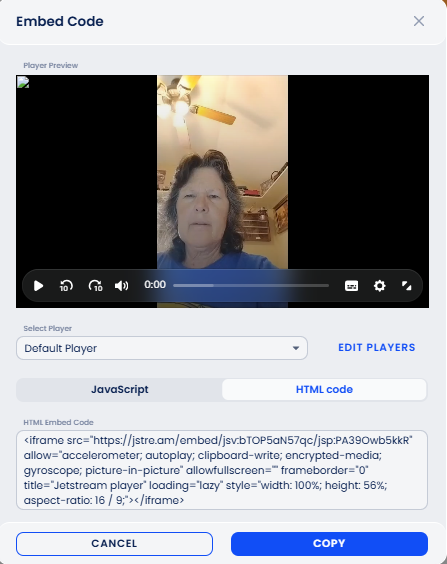
D. Embed: Click the Embed icon and then click on JavaScript or HTML Code and then click the Copy button. Once you have pasted the code where you want it, you can close the modal box with the X on the upper right.
Publish a Translated Video or Audio
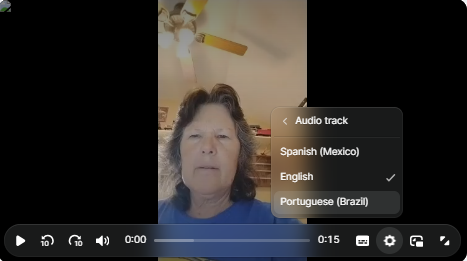
If you have Jetstream linked to your Adventist Web Engine site, in the player, you can click on the Settings icon. Then click on Audio Track or Captions. The list of Audio options will appear, and likewise for the Caption options.
If you want to publish your translated video or audio to YouTube or Facebook:

- In the Detailed media page, scroll down to the section titled Export media and click on the Export Media button.
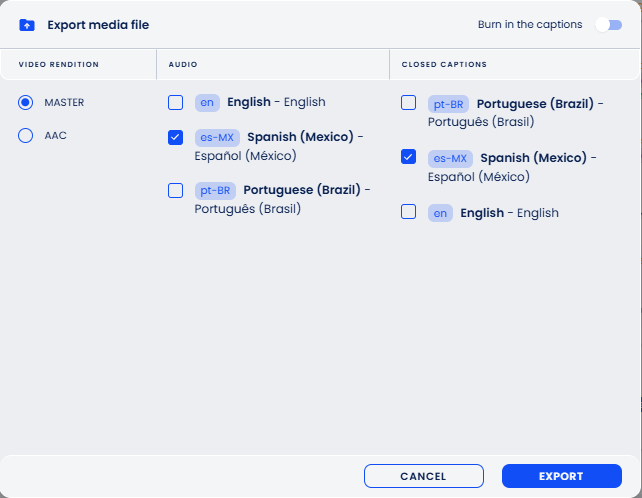
- In the modal box, select the Rendition, Audio and Captions from the options. Then click the Export button.

- Now you will see the export options icons across from your new file: Create media from export, Copy media export file URL, Download media export file, and Delete media export. You can download this file, then upload it to Facebook manually or YouTube.
- Another option is to click Create media from export.
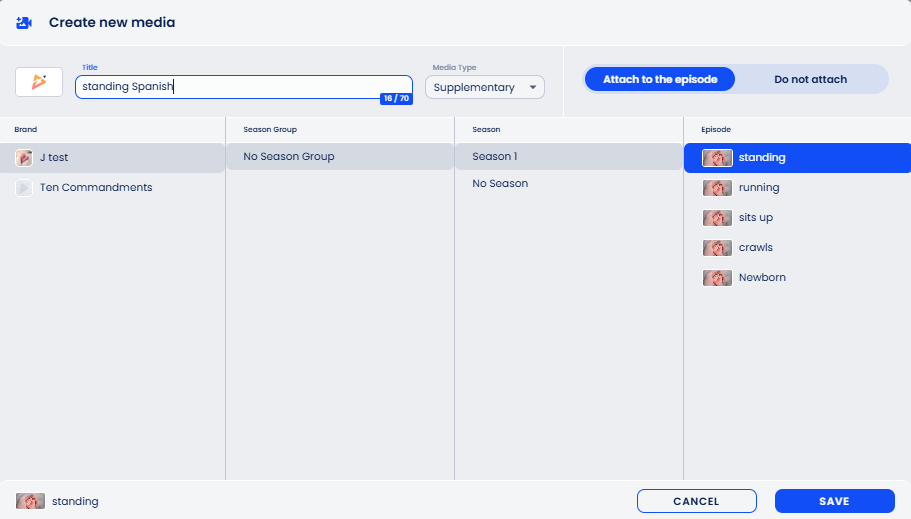
- In the Create new media modal box, if you want to attach to an existing episode, rename the title for your new file. Then click the Save button.

- Now, if you go to the original episode from the breadcrumbs at the top and scroll down to Episode Assets, your new exported file appears here. Click on the title.

- Scroll down, and you will see the Publish options for YouTube, Facebook, etcetera.
- Follow the instructions above for how to publish a video or audio.
Additional information
- Initial Setup of Jetstream Studio
- Add a New Episode (Upload a video or audio)
- Using Languages in Jetstream Studio